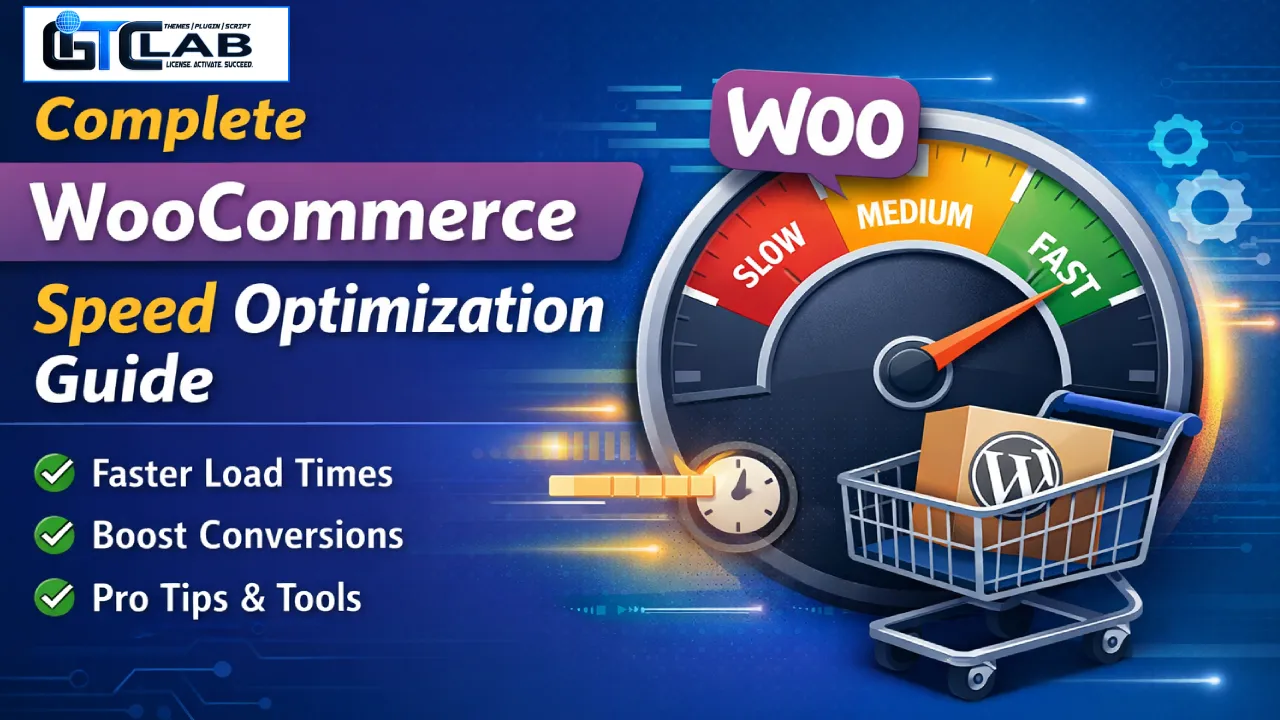
If your WooCommerce store feels slow, you’re not alone.
A one-second delay can quietly eat into conversions. Customers leave. Ads become expensive. Google rankings drop. And most of the time, the problem isn’t WooCommerce itself — it’s how everything is configured.
This Complete WooCommerce Speed Optimization Guide walks you through practical, real-world steps to make your store faster. No fluff. No unrealistic promises. Just clear actions you can implement today.
Whether you’re a beginner, freelancer, agency owner, or running your own eCommerce brand — this guide will help.
Why WooCommerce Speed Matters More Than You Think
Speed affects three major things:
Conversions
SEO rankings
User experience
Imagine a customer browsing your store on mobile with slow 4G. If your product page takes 5–6 seconds to load, they won’t wait. They’ll tap back.
Fast stores feel trustworthy. Slow stores feel risky.
That’s why proper WooCommerce Speed Optimization isn’t optional anymore.
Step 1: Start With Proper Hosting (The Foundation)
Before touching plugins or themes, fix the foundation.
What to Look for in Hosting
If you’re selling actively, cheap shared hosting will eventually slow you down — especially during sales or traffic spikes.
Real-life example:
A small fashion store moved from basic shared hosting to a LiteSpeed VPS. Without changing anything else, load time dropped from 4.8s to 2.1s.
Hosting matters.
Step 2: Choose a Lightweight WooCommerce Theme
Heavy themes are one of the biggest speed killers.
Many “feature-packed” themes load unnecessary scripts on every page — even where they’re not needed.
Look for:
Lightweight premium themes like Astra Pro or GeneratePress (GPL versions available through GiTCLAB membership) are popular because they load only what’s needed.
Internal linking suggestion:
👉 You can explore lightweight GPL themes inside our WordPress Theme collection page.
Step 3: Optimize Images the Smart Way
Large images silently destroy speed.
Most store owners upload 3000px images straight from DSLR or smartphone.
Do This Instead:
Example:
Original product image: 2.8MB
Optimized WebP version: 180KB
Same quality. Massive speed difference.
Image optimization alone can cut load time by 30–40%.
Step 4: Use a Proper Caching System
Caching reduces server processing time.
Without caching, WooCommerce rebuilds pages for every visitor.
Recommended Caching Plugins
| Feature | WP Rocket | LiteSpeed Cache | W3 Total Cache |
|---|
| Ease of Use | Very easy | Moderate | Complex |
| WooCommerce Friendly | Yes | Yes | Needs config |
| Built-in Optimization | Strong | Strong | Partial |
| Best For | Beginners & agencies | LiteSpeed servers | Advanced users |
If your hosting runs LiteSpeed, LiteSpeed Cache is powerful and free.
For simplicity, many agencies prefer WP Rocket because it works well out of the box.
Members of GiTCLAB can download premium GPL plugins like WP Rocket under an active membership. All products are GPL licensed and do not include official developer support.
Step 5: Reduce Plugin Bloat
More plugins ≠ more power.
Every plugin adds:
Extra CSS
Extra JS
Database queries
Audit your site.
Ask yourself:
Do I really need this plugin?
Can this feature be replaced with lightweight code?
Is this plugin updated regularly?
A real case:
One store had 42 plugins installed. After removing 11 unnecessary ones, load time improved by 0.9 seconds.
Small changes matter.
Step 6: Optimize WooCommerce-Specific Settings
WooCommerce has dynamic elements that need careful handling.
Disable Cart Fragments on Non-Shop Pages
Cart fragments refresh cart data using AJAX. On content pages, it’s often unnecessary.
You can disable it safely with proper code or performance plugins.
Limit Related Products
Too many related products = heavy queries.
Limit to 4 instead of 8–12.
Clean Transients Regularly
WooCommerce stores temporary data (transients).
Use database optimization tools to clear expired ones.
Step 7: Database Optimization
Over time, your database collects:
Post revisions
Spam comments
Expired transients
Orphaned metadata
Use tools like WP-Optimize or Advanced Database Cleaner.
Set monthly cleanup schedules.
If you’re running a high-traffic store, this alone can stabilize backend speed significantly.
Step 8: Use a CDN (Especially for Global Stores)
If your customers are international, a CDN is essential.
Cloudflare (free plan works well) can:
For Indian or South Asian stores targeting global traffic, CDN reduces distance-based delay significantly.
Step 9: Optimize Fonts and Scripts
Most themes load:
Google Fonts
Font Awesome
Multiple JS libraries
You can:
Performance plugins can handle much of this automatically.
Be careful though — aggressive settings can break checkout or cart pages. Always test properly.
Step 10: Test the Right Way
Use multiple tools:
Don’t chase 100/100 blindly.
Focus on:
A fast, stable store converts better than a “perfect score” store that breaks functionality.
Common WooCommerce Speed Mistakes
Avoid these:
Installing heavy multipurpose themes
Using sliders everywhere
Autoplay background videos
Cheap hosting during big sales
Not optimizing mobile experience
Remember:
Most WooCommerce traffic is mobile.
Advanced WooCommerce Speed Optimization (For Agencies & Freelancers)
If you manage client stores, consider:
Object caching (Redis)
OPCache enabled server-side
Custom code to remove unnecessary WooCommerce scripts
Heartbeat control
Server-level compression (Brotli)
These techniques take speed from “good” to “professional-grade.”
That’s where proper WooCommerce Speed Optimization becomes a competitive advantage.
Real-Life Optimization Example
Before optimization:
4.6s load time
52 mobile score
High cart abandonment
After applying steps from this Complete WooCommerce Speed Optimization Guide:
No redesign. Just structured improvements.
Tools That Actually Help
Here are some reliable premium tools often used in speed projects:
WP Rocket
Perfmatters
ShortPixel
LiteSpeed Cache
Astra Pro
GiTCLAB members can access many premium GPL WordPress themes and plugins at no additional cost under an active membership.
All products are GPL licensed. They function like original files but do not include official developer support from the original authors.
This makes it affordable for freelancers, agencies, and store owners testing multiple tools.
FAQ – WooCommerce Speed Optimization
1. What is the ideal loading time for a WooCommerce store?
Under 3 seconds fully loaded is practical. Under 2.5 seconds is excellent.
2. Does installing more plugins always slow down WooCommerce?
Not always — but poorly coded or unnecessary plugins definitely will.
3. Is shared hosting enough for WooCommerce?
For small stores, maybe. For growing stores, VPS or optimized cloud hosting is better.
4. Can I optimize speed without technical knowledge?
Yes. Using proper hosting, caching, image compression, and lightweight themes already gives strong improvement.
5. Does speed really affect sales?
Yes. Faster stores consistently show lower bounce rates and better conversion rates.
Final Thoughts
Speed optimization isn’t a one-time job.
It’s a process.
As your product catalog grows, traffic increases, and plugins expand — performance must be monitored regularly.
This Complete WooCommerce Speed Optimization Guide gives you a practical roadmap. Start with hosting. Then theme. Then images. Then caching. Move step by step.
If you’re building multiple sites or working with clients, having access to premium GPL themes and performance plugins makes experimentation easier and more affordable.
You can explore GiTCLAB membership plans to download GPL WordPress themes and plugins under one active subscription — practical for freelancers and agencies who need flexibility.
Build fast. Keep it clean. Monitor regularly.
That’s how serious WooCommerce stores grow.